How to use custom buttons?
Betheme version 21.8.3 provided a new feature for managing all of the buttons in the theme.
This tutorial will be divided into two parts. The first part will be about using the predefined button styles: default, round, stroke, and flat. The second part will be about creating custom buttons.Predefined theme buttons
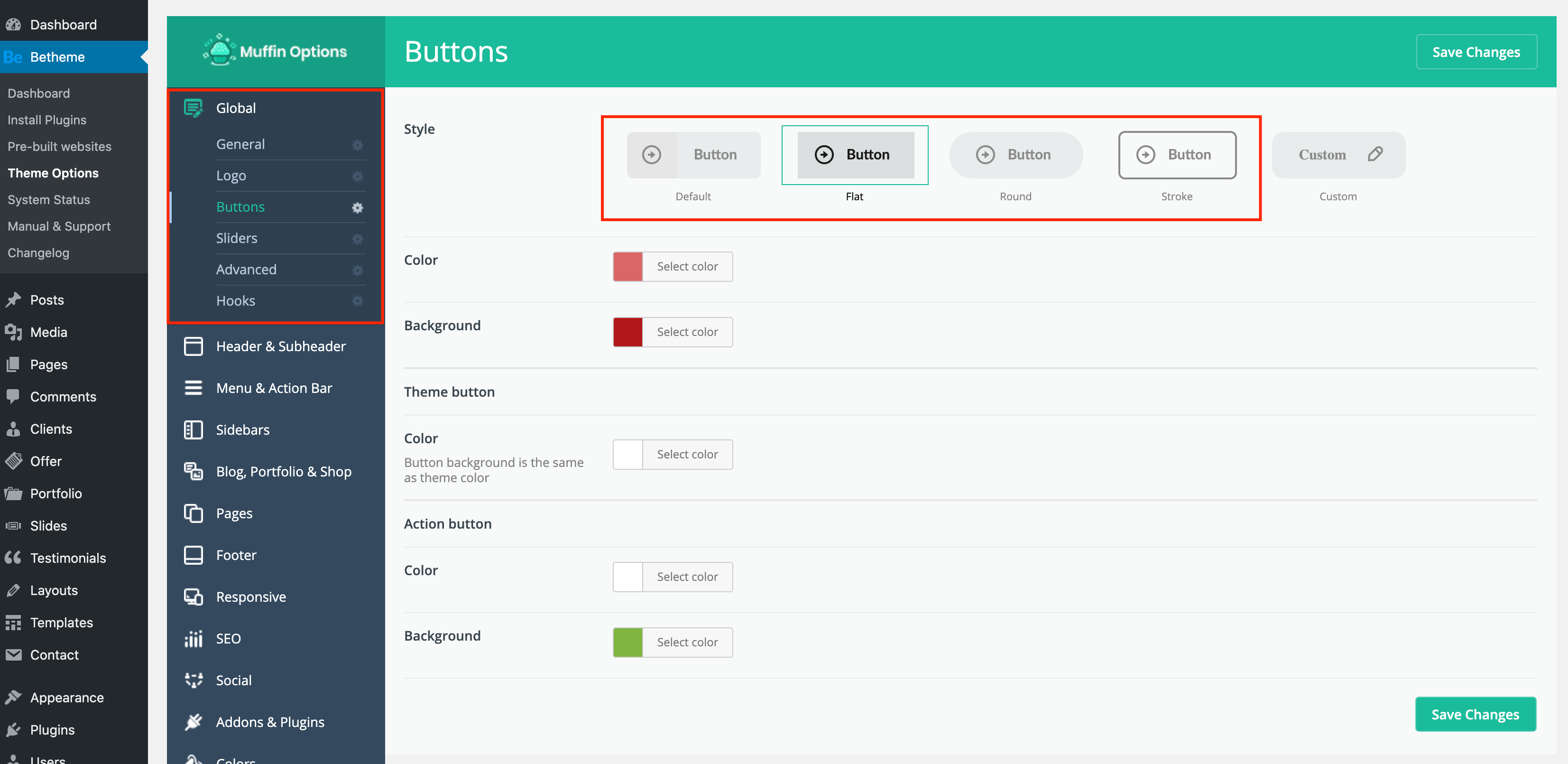
You will be presented with four already created button styles: default, flat, round, stroke.
Below that, you can select the background color and the text color of those buttons.
Theme button
Those buttons are inserted inside forms and shop pages. Since they are generated by plugins like Woocommerce and Contact Form 7, you cannot change them individually. The background for those buttons is taken from the theme color and only the text color can be changed. If you want to change the theme color, please follow the path below.
Action button
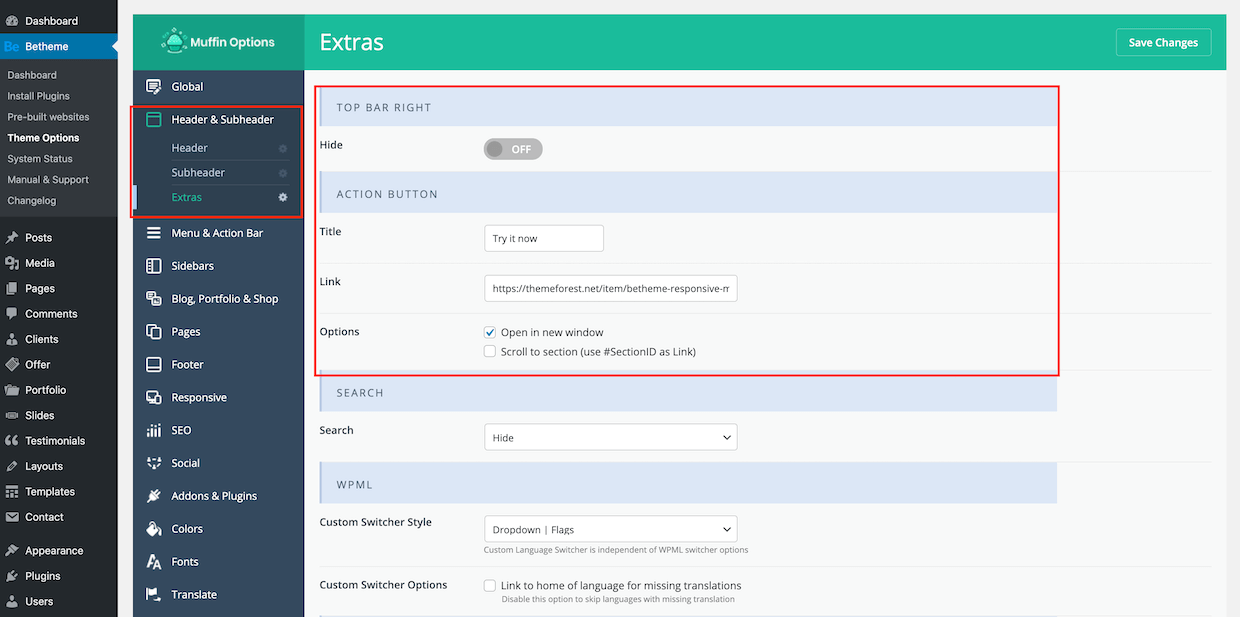
Change text and background colors for this button. The action button is placed in the header. You can change its contents inside Theme Options:
It is important that you have not hidden the Top Bar Right, as you can see in the screenshot below.
Custom buttons
This option will let you create your button styles. You can change text and background colors, font family & size, padding, border width, border radius, etc. It also provides a preview window, so you can see what the button looks like in real-time!
Border radius, border width, padding and font options are set globally for all button types. Only the colors can be managed individually.
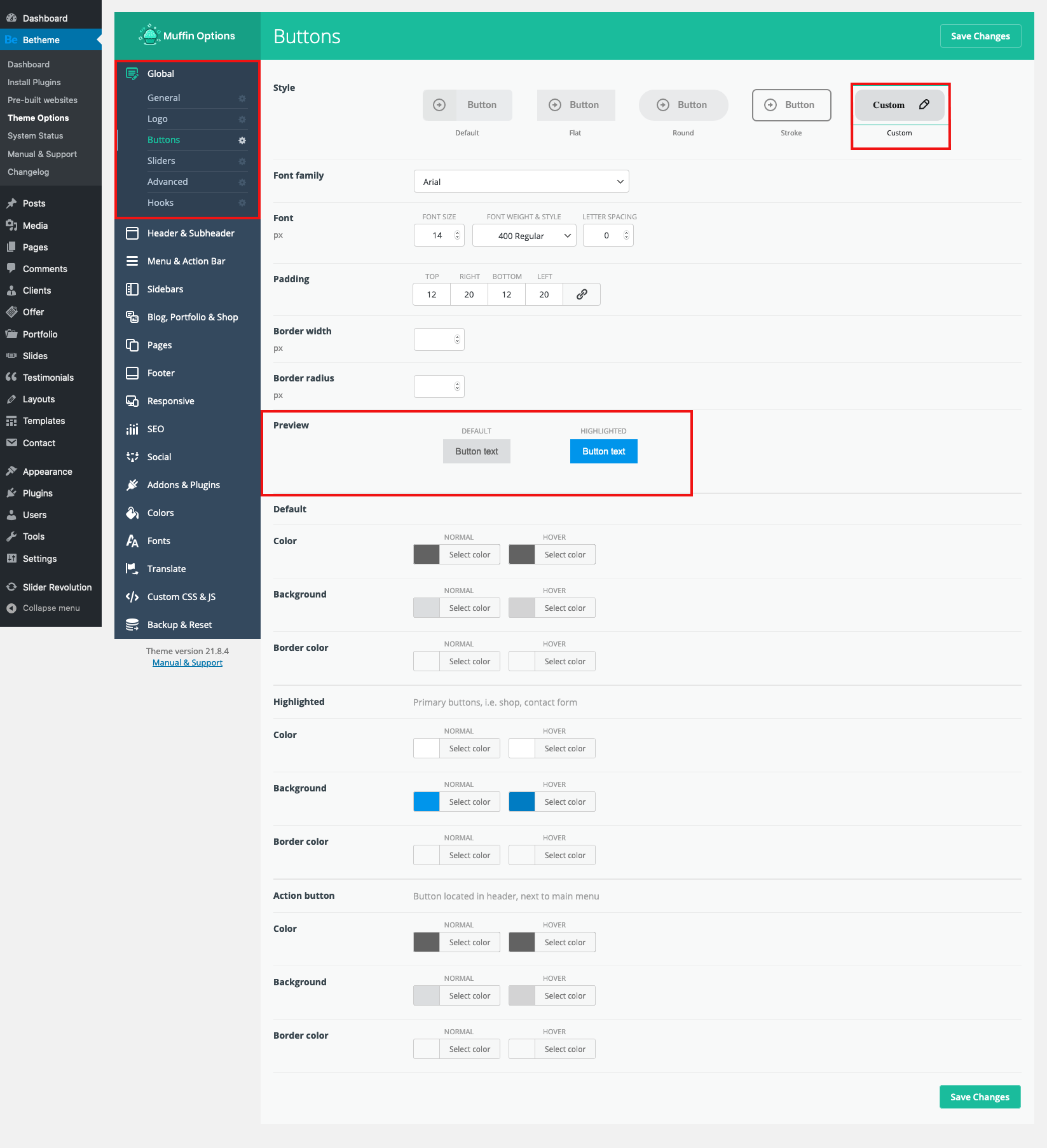
Default
The default colors are set as a base for all buttons inserted into the theme. If you add a button using the Muffin Builder or a shortcode and you do not change its individual colors then it will take the value from these fields.
Highlighted
Those buttons are inserted inside forms and shop pages. Since they are generated by plugins like Woocommerce and Contact Form 7, you cannot change them individually. All of those buttons will take the colors from these fields.
Action button
Change text and background colors for this button. The action button is placed in the header. You can change its contents inside Theme Options:
It is important that you have not hidden the Top Bar Right, as you can see in the screenshot below.